How to Save Instagram Stories on Android (2026) – Fast, Free & No App Required

How to Save Instagram Stories on Android (2026) – Fast, Free & No App Required
Instagram Stories disappear after 24 hours, but that doesn't mean they're gone forever. Whether you want to save your own Stories, keep memorable moments, or download public Stories for offline viewing, you can do it quickly on any Android device.
In this guide, you'll learn how to save Instagram Stories on Android without installing an app. The process is fast, secure, and works on Samsung Galaxy, Google Pixel, OnePlus, Xiaomi, Motorola, Oppo, Vivo, and other Android phones.
Table of Contents
Why Save Instagram Stories?
Can You Download Instagram Stories Without an App?
How to Save Instagram Stories on Android
Device-Specific Tips
Common Download Issues
Is It Legal to Download Instagram Stories?
Frequently Asked Questions
Final Thoughts
Why Save Instagram Stories?
Instagram Stories automatically disappear after 24 hours. Downloading them allows you to keep important content permanently for personal use.
Here are some common reasons people save Instagram Stories:
Keep memorable moments before they disappear
Back up your own Stories
Save tutorials, recipes, and educational content
Watch Stories offline anytime
Store business announcements and promotional content
Build a personal collection of favorite Stories
Save creative inspiration from public creators
Can You Download Instagram Stories Without an App?
Yes. You can download Instagram Stories directly from your Android browser without installing any software.
Simply copy the Story link, paste it into AllReelSaver, and download the Story in HD quality within seconds.
Benefits include:
No app installation required
No Instagram login needed
HD quality downloads
No watermark
Works on every Android device
Completely free
Fast downloads
Secure HTTPS connection
How to Save Instagram Stories on Android
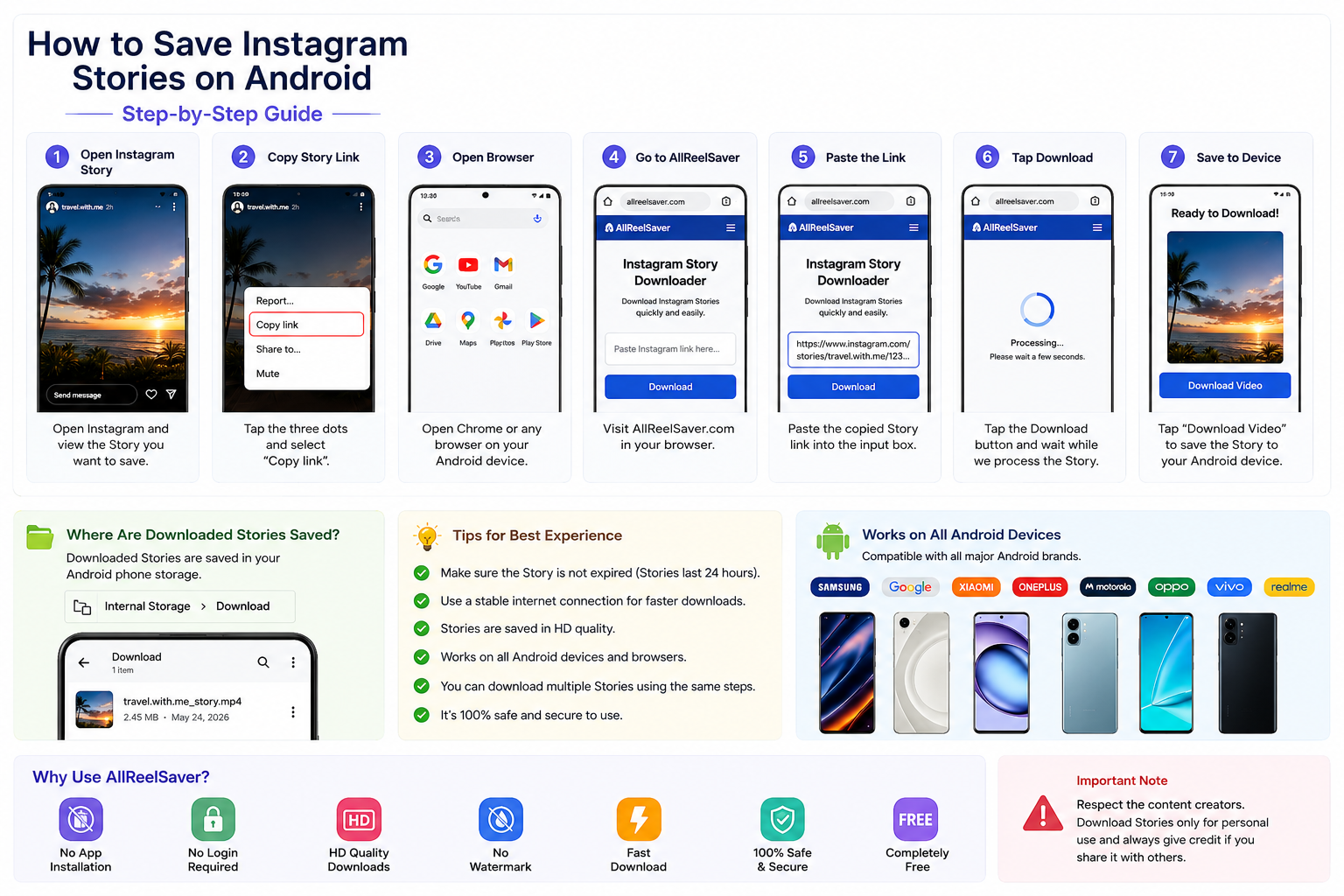
Step 1: Open Instagram
Launch Instagram on your Android phone and open the Story you want to save.
Make sure the Story hasn't expired since Instagram Stories remain available for only 24 hours.
Step 2: Copy the Story Link
Tap the three-dot menu in the Story.
Choose Copy Link.
The Story URL will be copied to your clipboard.
Step 3: Open Your Browser
Open Chrome or any browser installed on your Android device.
Step 4: Visit AllReelSaver
Go to the AllReelSaver homepage.
You'll see an input field where you can paste your Instagram Story URL.
Step 5: Paste the Link
Paste the copied Story link into the download box.
Double-check that the link is complete before continuing.
Step 6: Download the Story
Tap the Download button.
The Story will be processed in just a few seconds.
Step 7: Save the File
Once processing is complete, tap Download Video.
Your Story will be saved as an MP4 file in your Downloads folder.
You can watch it anytime without an internet connection.
Why Use AllReelSaver?
AllReelSaver is designed to make downloading Instagram Stories simple and hassle-free.
Features
Works on all Android devices
No app installation
No account required
HD quality downloads
No watermark
Unlimited downloads
Fast processing
Free forever
Safe and secure
Android Device Compatibility
The download process works the same across nearly all Android devices.
Samsung Galaxy
Downloaded Stories appear in the Downloads folder and can easily be moved to the Gallery app.
Google Pixel
Stories are saved in Downloads and may automatically appear in Google Photos if syncing is enabled.
Xiaomi, Redmi & POCO
Downloaded files can be accessed through the File Manager or Gallery.
OnePlus, Motorola, Oppo & Vivo
The process is identical. Simply copy the Story link, paste it into AllReelSaver, and download.
Common Download Issues
Story Has Expired
Instagram Stories are only available for 24 hours.
If the Story has already expired or been deleted, it cannot be downloaded.
Download Isn't Working
Try the following:
Check your internet connection.
Refresh the page.
Copy the Story link again.
Ensure the Story is still publicly accessible.
Can't Find the Downloaded File
Open your phone's File Manager and navigate to the Downloads folder.
Downloaded Stories are usually saved as MP4 files.
Story Won't Play
Most Android devices support MP4 videos.
If necessary, try another video player such as VLC or Google Photos.
Is It Legal to Download Instagram Stories?
Downloading Instagram Stories for personal use is generally acceptable, especially when downloading your own content.
Always respect copyright laws and the creator's rights.
Recommended Uses
Save your own Stories
Keep public Stories for personal reference
Watch content offline
Avoid
Reposting without permission
Commercial use without authorization
Claiming someone else's content as your own
Violating Instagram's Terms of Service
Frequently Asked Questions
Can I download someone else's Instagram Story?
Yes, if the Story is publicly accessible or you have permission to view it.
Does Instagram notify someone if I download their Story?
No. Instagram does not notify users when their public Story is downloaded using an online downloader.
Do I need to install an app?
No.
Everything works directly from your browser.
Can I download Stories in HD?
Yes.
The downloaded quality depends on the original Story uploaded by the creator.
Where are downloaded Stories stored?
They are usually saved in your Android phone's Downloads folder as MP4 files.
Can I download Stories from private accounts?
Only if you have permission to view the Story through your Instagram account.
Is AllReelSaver free?
Yes.
AllReelSaver allows you to download Instagram Stories without charging any fees.
Tips for Organizing Downloaded Stories
To keep your downloaded Stories organized:
Create a dedicated "Instagram Stories" folder.
Move important Stories into your Gallery.
Back them up using Google Photos.
Organize content by creator or category.
Rename files for easier searching later.
Related Instagram Tools
If you download other types of Instagram content, you may also find these tools helpful:
Instagram Reels Downloader
Instagram Video Downloader
Instagram Photo Downloader
Instagram Profile Picture Downloader
Instagram Highlights Downloader
Final Thoughts
Saving Instagram Stories on Android is quick and straightforward. You don't need to install an app or create an account. Simply copy the Story link, paste it into AllReelSaver, and download the Story in HD within seconds.
Whether you're backing up your own Stories, saving educational content, or keeping memorable moments, AllReelSaver provides a fast, secure, and reliable way to download Instagram Stories on any Android device.
Start downloading your favorite Instagram Stories today and never miss important content again.
Tags
Ready to Download Instagram Content?
Try AllReelSaver now and download Instagram Reels, Stories, and videos in HD quality for free!
Start Downloading Now